Set up an agent
An agent is a tool-using LLM you configure once and then reuse — either by chatting with it yourself (see Use the assistant) or by wiring it into an automation that invokes it automatically.
This is about the AI agents you configure in-app. If you're looking for the separate Kubernetes discovery agent (the one that runs in your cluster to find services), that's a different thing — covered elsewhere.
Create an agent
- Go to Agents. The Agents tab lists what you've built; Tool Servers is where you connect MCP servers agents can draw tools from.
- Click + New Agent to start from scratch, or Browse Templates for a prebuilt one (for example, an Incident Manager template that also sets up the automation that triggers it).
- Fill in:
- Agent Name and an optional Description
- System Prompt — instructions defining the agent's role and behavior (up to 8,000 characters)
- Max Iterations — how many tool-call rounds it can take before stopping (1–20, default 6)
- Tool Allowlist — which of OpsRadar's built-in tools it can use
- MCP Tool Access — which tools from your connected MCP servers it can use
- An agent needs a name, a system prompt, and at least one usable tool before you can save it.
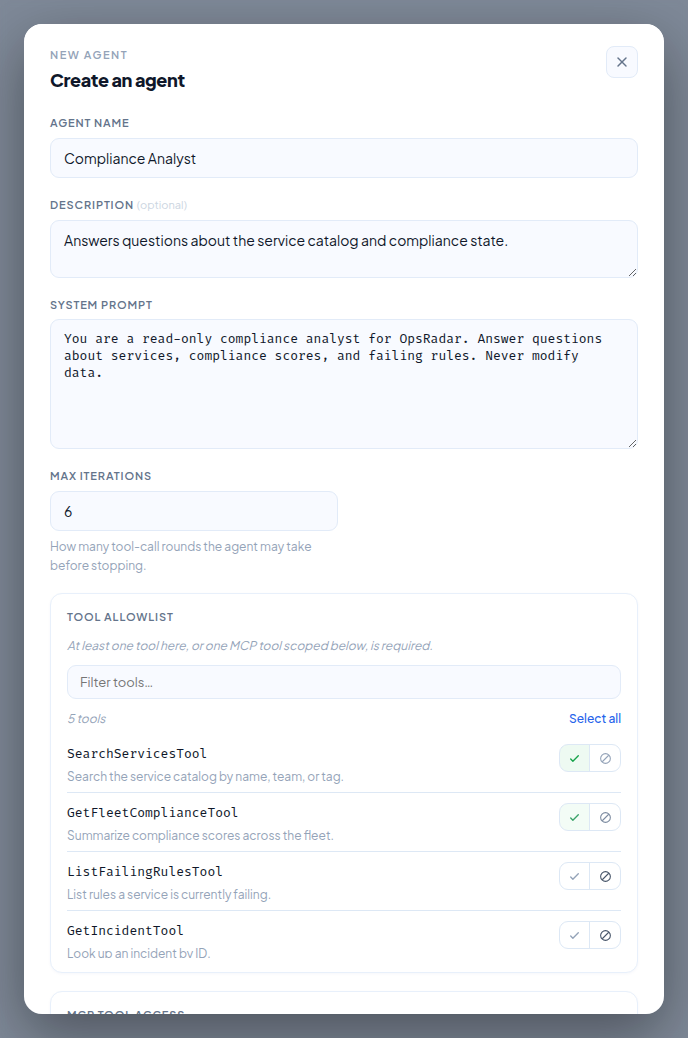
Governing what an agent can do
Two independent layers control this, and both are enforced server-side, not just hidden in the UI:
Tool allowlist. Each built-in tool carries a required permission scope, is marked read or write, and has an approval mode — automatic or manual. Adding a write tool with manual approval means every call it makes waits for a human to sign off.
MCP connection scopes. For tools coming from external MCP servers, access is set per tool: Ask (approval every call), Ask once per conversation (covers roughly 30 minutes or 20 calls), Always allow, or Block. If an MCP server changes a tool's definition after you've granted access, OpsRadar automatically suspends that grant and falls back to asking again — it won't silently keep trusting a tool that changed underneath it.
Anything waiting on a human shows up in the Approvals inbox, grouped by conversation turn, so you can approve or reject a batch at once.
Scope
Agents aren't scoped to individual services — access is organization-wide, governed by the tool allowlist and MCP connections above. There's currently no way to restrict an agent to only act on a specific service.
Triggering an agent
Agents don't run on their own — something has to invoke them:
- From the assistant — pick the agent in a chat and talk to it directly.
- From an automation — wire it to a trigger (an incident opening, a deploy, a schedule) so it runs unattended. You can't hand-build this kind of automation directly; it's created automatically when you instantiate an agent template that includes one.