Use the assistant
The assistant is a chat interface backed by the same agents you configure under Agents — a human-in-the-loop way to ask questions and take action, as opposed to the unattended runs an automation triggers.
Open it
Press ⌘/Ctrl+J to open the assistant panel from anywhere in the app. This is separate from ⌘/Ctrl+K, which opens the command palette. Click Open full view in the panel for the dedicated assistant page, which adds your conversation history and an approvals inbox alongside the chat.
If you don't have any enabled agents yet, the panel tells you so and links you straight to Agents to configure one.
Chat with an agent
- Pick an agent from the picker.
- Type your question — for example, something about your catalog, compliance, or incidents — and send it.
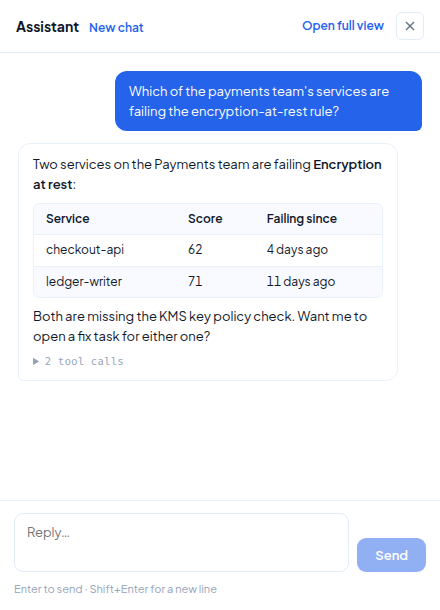
- Replies render as markdown, including tables. Each response can show a collapsible list of the tool calls it made along the way, with the tool name, its input, and the result — so you can see exactly what it looked up or did, not just take the answer on faith.
Composer shortcuts: Enter to send, Shift+Enter for a new line.
What it can actually do
This isn't a canned Q&A bot — it's the same tool-calling agent loop used by automations, just running interactively with your own permissions. Depending on how the agent you picked is configured, it can search your service catalog, check compliance scores and failing rules, look up incidents and owners, and take actions.
Any write action — one that actually changes something rather than just reading — follows the same approval rules as everywhere else: if the agent's configuration requires manual sign-off for that tool, the request shows up as awaiting approval right in the conversation until someone approves it from the approvals inbox.